
Introduction
Model Context Protocol (MCP) lets you connect AI assistants to your organization so they can securely perform actions and fetch data on your behalf. With SaaS Boilerplate, each organization has its own MCP Server URL, ready to use with ChatGPT, Claude, and popular developer tools.
Good to know
You can regenerate your MCP key anytime from the settings page to revoke old access.
Prerequisites
- Organization role: Owner or Admin
- An active organization in your SaaS workspace
- An AI assistant that supports MCP (e.g., ChatGPT Connectors, Claude)
Where to Find Your MCP URL
Open the MCP settings
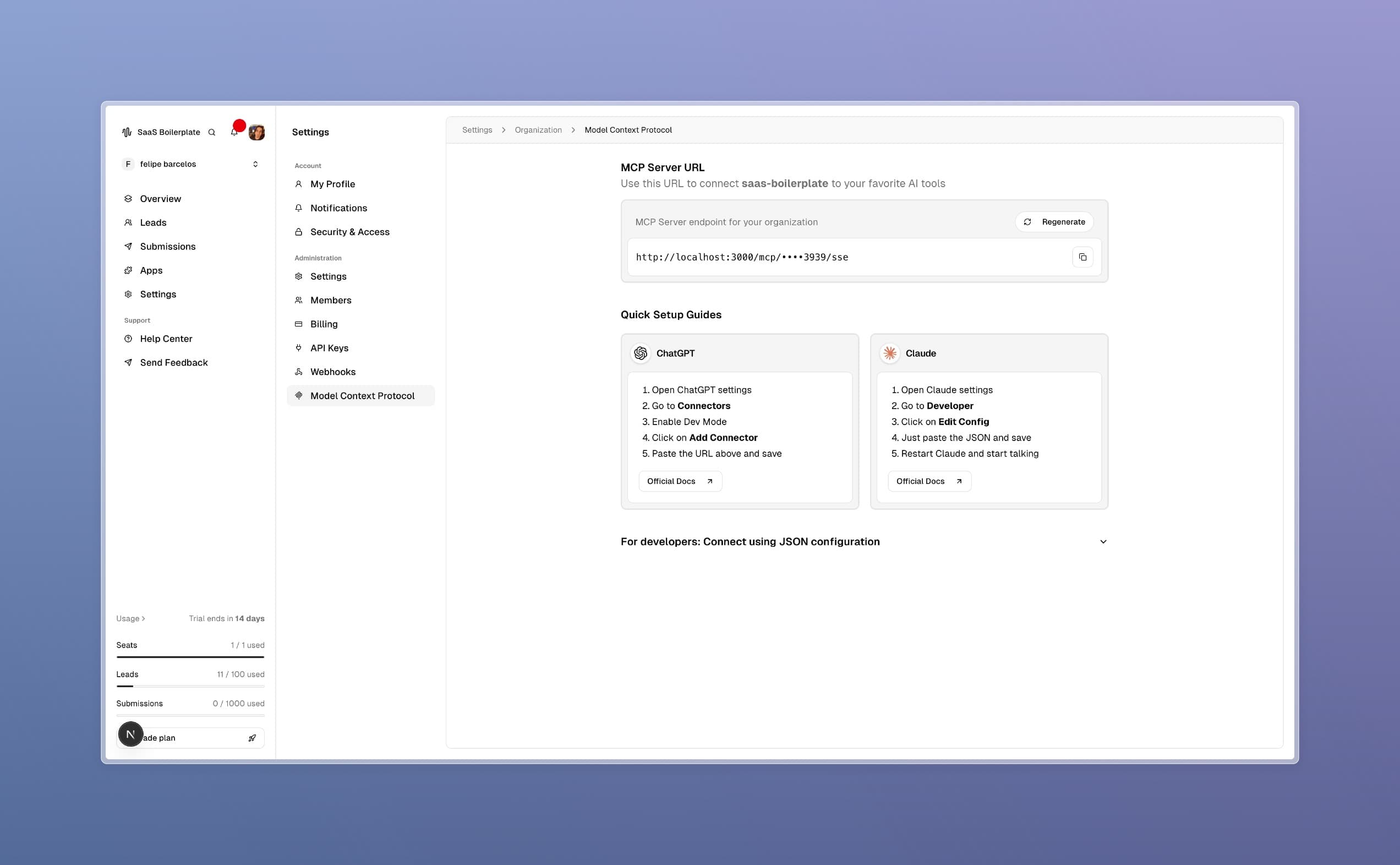
Go to Dashboard → Settings → Organization → Model Context Protocol.
Copy your organization URL
Use the copy button to copy the MCP Server URL. This URL looks like: https://yourapp.com/mcp/sk_xxx.../sse.
(Optional) Regenerate the key
You can rotate the MCP key at any time. This will immediately invalidate the previous URL.
Quick Setup Guides
ChatGPT (Connectors)
- Open ChatGPT settings → Connectors
- Enable Developer Mode (if required)
- Click “Add Connector”
- Paste your organization’s MCP URL and save
Claude (Remote Servers)
- Open Claude settings → Developer → Edit Config
- Paste the provided JSON configuration with your organization’s MCP URL
- Save and restart Claude
Developer Tools (Cursor, Cline, Windsurf, Roo Code, VS Code Copilot)
Create or edit the tool-specific MCP configuration file (e.g., .cursor/mcp.json, .vscode/mcp.json) and paste the URL. Restart the tool if needed.
What You Can Do
- Ask the assistant to list or create items (like leads or submissions) within your organization.
- Automate common tasks (e.g., “Create a new lead named Jane Doe with email jane@acme.com”).
- Explore data quickly without leaving your assistant.
Security & Privacy
- Your MCP URL is unique to your organization and tied to a secure API key.
- Regenerating the key will immediately block old connections.
- Access is always scoped to your organization; assistants can’t see other organizations.
Troubleshooting
Need Help?
- Contact your Organization Admin to verify roles and access.
- If the issue persists, reach out to support with a screenshot of the settings page.
Read More